 Overview
VirtualShield uses a sophisticated  Very Early Warning System to monitor
  private and public databases for signs of early identity theft and ID theft risk. After adding you and your family’s information, you can safely shop online and use social media knowing your identity is fully secure against breaches.
In the event that your information appears compromised, we will immediately alert you on your Account Dashboard and via SMS/text message along with instructions on how to protect yourself. If identity theft does happen, our Identity Restoration Team will handle the entire recovery process for you.
In this article
How does it work?
This system uses your Social Security number, and the USPS address in your account to look for manipulations that indicate you are at risk. We scan millions of servers, chat rooms, forums, message boards and websites across all sides of the web to detect  fraudulent use of your information.
The Very Early Warning System is always running 24/7 with new information. We monitor your SSN number in real-time, detecting usage across a variety of situations including loan applications, employment and healthcare records, tax filings, document signings and payment platforms.
We watch thousands of  data streams, including county court dockets,
  state incarcerations, and federal records. We catch emerging risks as they happen instead of waiting for an annual report. Receive immediate alerts if unauthorized activity within legal databases is enacted in your name.

We can monitor up to 3 SSN numbers at the same time to protect your entire household against identity theft, in addition to your own.
Adding your SSN Number
These details will be added automatically during activation. However, the  more information you provide the better we can protect you. Follow these steps to add additional SSN numbers to your account.
How to add your Social Security number:
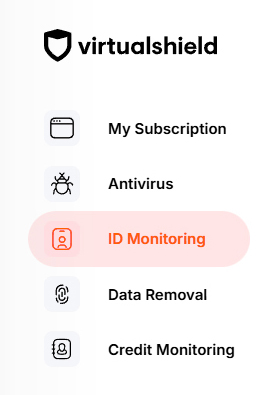
Start by visiting your Account Dashboard. Select ID Monitoring from the navigation menu, or use the link below:
If you do not have a
Press the Setup button to activate your protection, if you have not done so already.
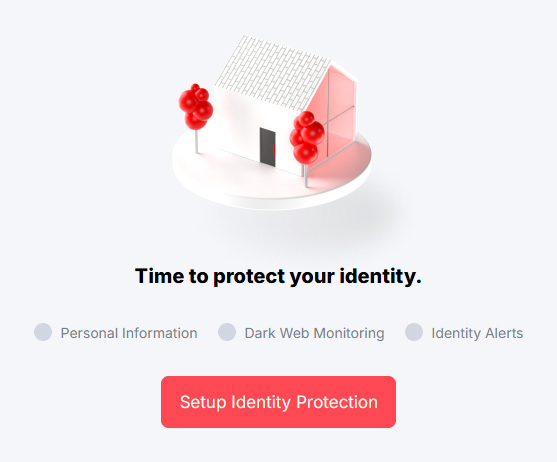
For more help verifying your identity and activating Identity Protection, see our support article.
Select the Monitored Information tab near the top of the page.

Alternatively, you can press the Review or Update button on the
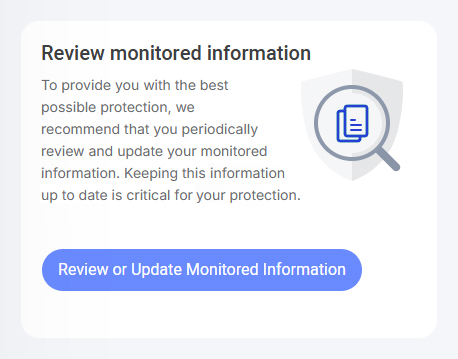
Below Social security numbers, choose Add SSN.
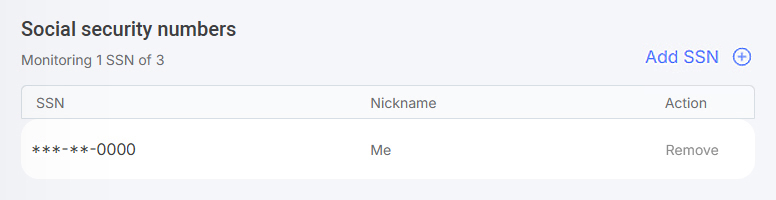
If there is no SSN on file you will be unprotected. We must have at least one SSN number and Postal address on file in order to protect you.
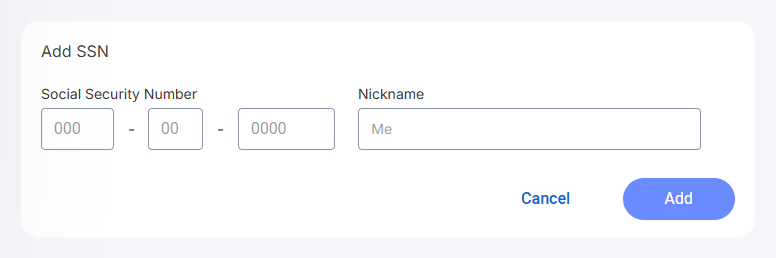
Enter your 9-digit SSN number into the field(s) provided, then press Add.
That’s it! You will be notified on your
data breaches.
Removing your SSN Number
If you’ve reached the  maximum limit for your account, you can follow the
  same exact steps to remove a SSN number you added previously. Just be aware it will
  no longer be monitored by our system.
How to remove your Social Security number:
Start by visiting your Account Dashboard. Select ID Monitoring from the navigation menu, or use the link below:
If you do not have a
Press the Setup button to activate your protection, if you have not done so already.
For more help verifying your identity and activating Identity Protection, see our support article.
Select the Monitored Information tab near the top of the page.
Alternatively, you can press the Review or Update button on the
Below Social security numbers, choose Remove next to the SSN you would like to remove.
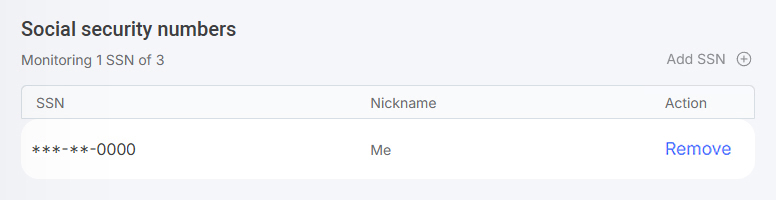
This action can not be undone. We must have at least one SSN number and USPS address on file in order to protect you. Everything else is optional.
Common Questions
Do I need to download an app?
No, there’sinstall any software to utilize this service.
Can I remove my family’s information?
Absolutely! We can monitor up to 20 bank accounts, 10 credit cards, 10 email addresses, 10 phone numbers, 3 SSN numbers, and more. You can monitor your relatives’ identity on your
Will I receive an alert if I’ve been breached?
Find your alerts by visiting your