 Overview
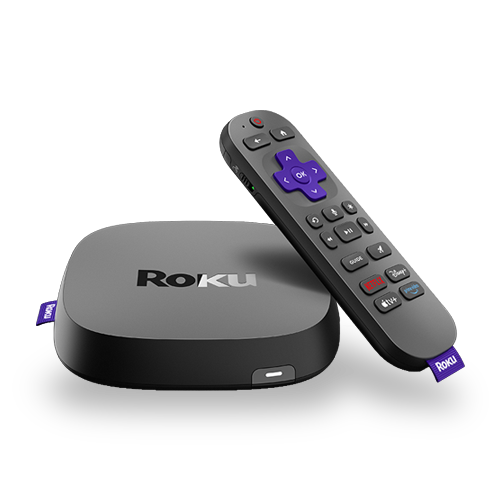
There are two different ways to set up a VPN on a Roku streaming device. Through your router or through your computer. Most Roku devices rely on Wi-Fi, but the Roku Ultra also features an Ethernet port, so you can connect it directly to a computer by cable.
You can set it up on your Windows or Mac computer first, and then connect to a secondary device using an Ethernet/Crossover cable. Alternatively, you can use your computer’s Mobile hotspot to share the VPN connection across multiple devices.
 Windows
  macOS
macOSWindows
The VirtualShield VPN app will encrypt the entire connection on your device. This means other devices across your network can route traffic through the VPN tunnel. For example, you can share the VPN connection with a secondary device like your smart TV or gaming console.
Sharing the VPN connection is best achieved by using an Ethernet/Crossover cable. Ethernet ports are commonly used as an I/O (input/output) interface to transfer data between devices. You can also turn your computer into a virtual router (hotspot) by opening your System Settings.
Running a Roku device through your computer’s connection requires that you have two network adapters — one for the internet, and a second for the device. Laptops typically have both a wireless and a wired adapter. Desktop computers can vary more, especially if they were home-built.

If you don’t have two network adapters ready some of the relevant options may not appear. If your computer lacks an Ethernet port, you can use a USB adapter.
In this section
Using an Ethernet cable
How to share the VPN connection using an Ethernet cable:
Open VirtualShield VPN and activate your protection, if you are not connected already.
For more help logging in and activating protection, see our support article.
Open the Settings app on your Windows computer.

To open Settings, press
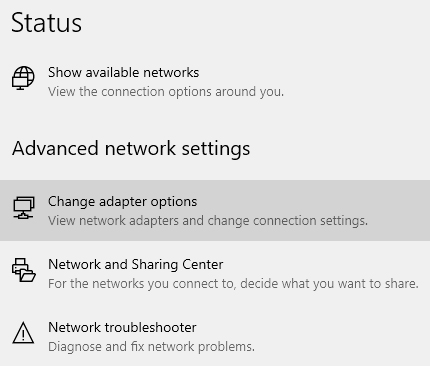
Navigate to Network & Internet Advanced network settings  Change adapter options.
Right-click the VirtualShield network and select  Properties.
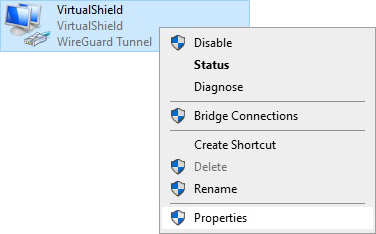
Note that you must be connected to the internet via Ethernet or an adapter, as you cannot share an active Wi-Fi connection.
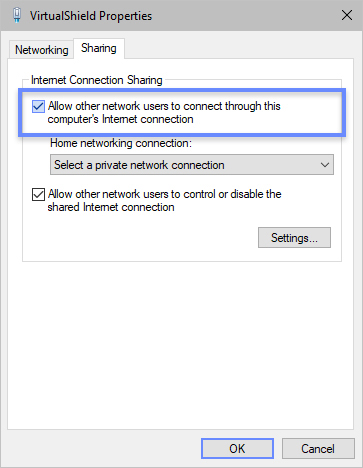
In the Sharing tab, select the Allow other network users to connect... option.
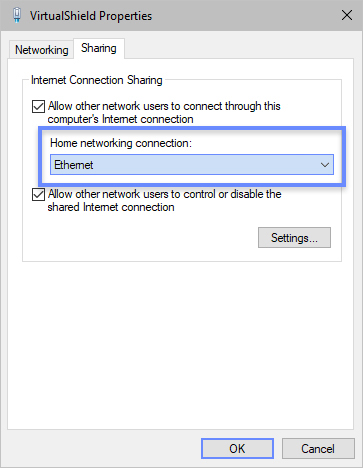
Below Home networking connection choose Ethernet, then click OK.
Connect your  Roku device to the computer using an Ethernet/Crossover cable.
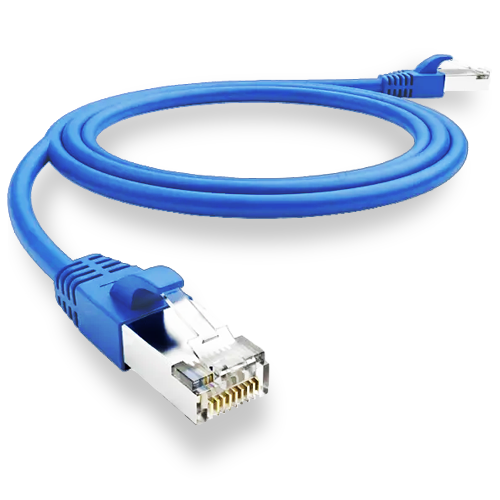
That’s it! You are ready to share the VPN connection across devices. If you have more Ethernet ports available you can protect additional devices.
Using your Wi-Fi hotspot
How to share the VPN connection using your Wi-Fi hotspot:
Open VirtualShield VPN and activate your protection, if you are not connected already.
For more help logging in and activating protection, see our support article.
Open the Settings app on your Windows computer.
To open Settings, press
Navigate to Network & Internet Mobile hotspot, then toggle the Mobile hotspot On.
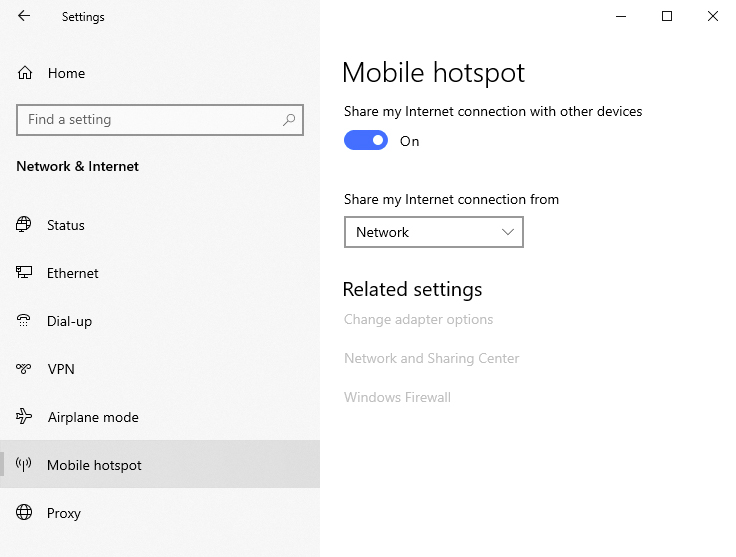
Select Status or  Network Settings from the sidebar, then click Change adapter options.
Right-click the VirtualShield network and select Properties.
Note that you must be connected to the internet via Ethernet or an adapter, as you cannot share an active Wi-Fi connection.
In the Sharing tab, select the Allow other network users to connect... option.
Below Home networking connection choose Ethernet, then click OK.
Connect your Roku device to the new shared Wi-Fi network.
macOS
The VirtualShield VPN app will encrypt the entire connection on your device. This means other devices across your network can route traffic through the VPN tunnel. For example, you can share the VPN connection with a secondary device like your smart TV or gaming console.
Sharing the VPN connection is best achieved by using an Ethernet/Crossover cable. Ethernet ports are commonly used as an I/O (input/output) interface to transfer data between devices. You can also turn your computer into a virtual router (hotspot) by opening your System Settings.
Running a Roku device through your computer’s connection requires that you have two network adapters — one for the internet, and a second for the device. Laptops typically have both a wireless and a wired adapter. Desktop computers can vary more, especially if they were home-built.
In this section
Using an Ethernet cable
How to share the VPN connection using an Ethernet cable:
Open VirtualShield VPN and activate your protection, if you are not connected already.
For more help logging in and activating protection, see our support article.
From the Apple menu near the corner of your screen, select System Settings.
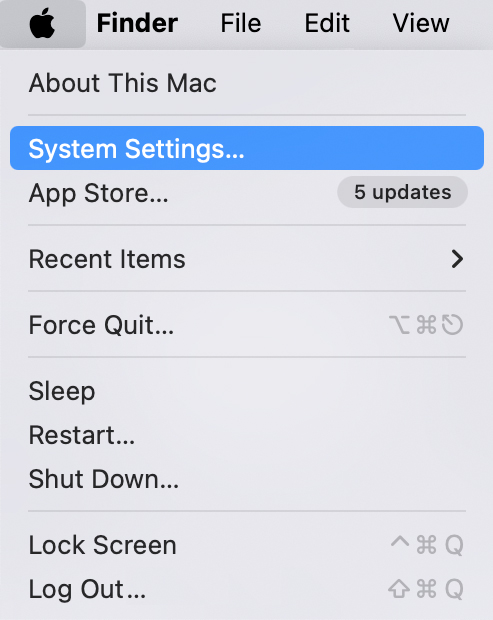
If you don’t see the System Settings option, select System Preferences.
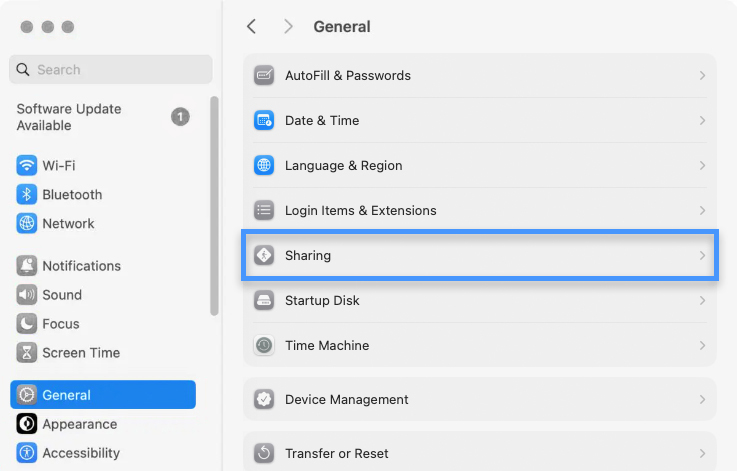
Navigate to General from the sidebar, then click Sharing on the right.
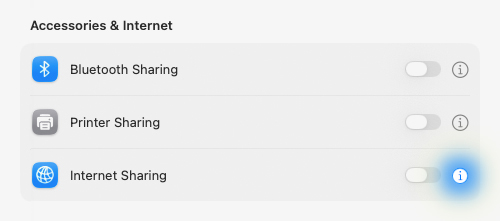
Click the information icon next to Internet Sharing.
Next to Share your connection from, select the VirtualShield network.
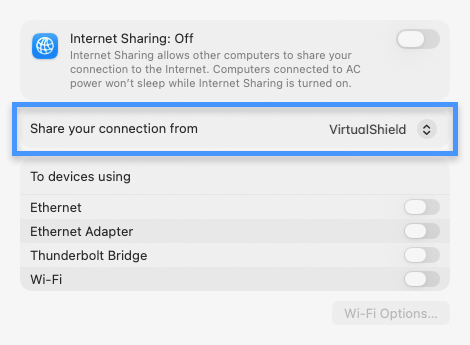
Note that you must be connected to the internet via Ethernet or an adapter, as you cannot share an active Wi-Fi connection.
Below To devices using choose Ethernet, then toggle Internet Sharing On.
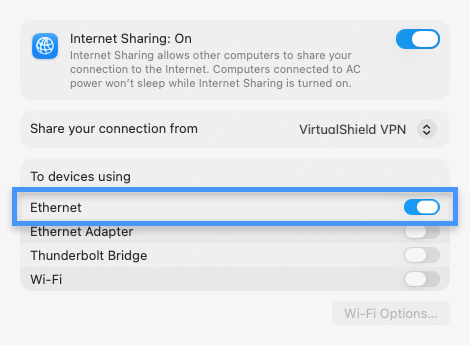
Connect your Roku device to the computer using an Ethernet/Crossover cable.
Using your Wi-Fi hotspot
How to share the VPN connection using your Wi-Fi hotspot:
Open VirtualShield VPN and activate your protection, if you are not connected already.
For more help logging in and activating protection, see our support article.
From the Apple menu near the corner of your screen, select System Settings.
If you don’t see the System Settings option, select System Preferences.
Navigate to General from the sidebar, then click Sharing on the right.
Click the information icon next to Internet Sharing.
Next to Share your connection from, select the VirtualShield network.
Note that you must be connected to the internet via Ethernet or an adapter, as you cannot share an active Wi-Fi connection.
Below To devices using choose Wi-Fi, then toggle Internet Sharing On.
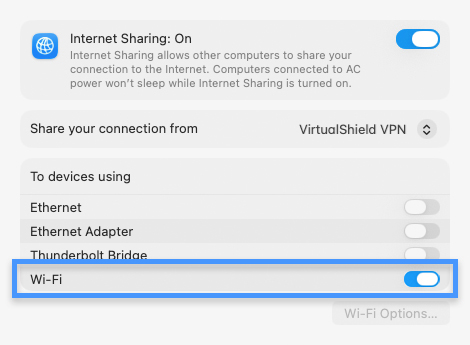
Connect your Roku device to the new shared Wi-Fi network.
Common Questions
Can I share the VPN connection on my mobile device?
Absolutely! You can install the VirtualShield VPN app on your phone or tablet, and then stream it to other devices via Chromecast or Apple AirPlay. Many devices also include built-in screen casting features.Why can’t I connect to the shared Wi-Fi network?
You might need to enableLocal Network Access in your VPN Settings first. You may also need to disable port forwarding on the network adapter. If you need any assistance, please don’t hesitate to contact us.
Can I install the Android app on my Roku device?
Roku streaming devices currently come with a few pre-installed apps. Roku regularly adds new ones, but unfortunately you can’t install your own.