 Overview
VirutalShield is fully compatible with all modern computers, tablets, and mobile devices. Our mobile apps can be downloaded directly from the Apple App Store or the Google Play Store, and the desktop apps can be downloaded from our website. All of our apps are completely free to download.
We support devices like Google Chromebook, Amazon Kindle/Fire tablets, and  Nvidia Shield as well. In addition to smart TVs, gaming consoles, and more by sharing protection with a secondary device. If you don’t see your device listed below, chances are you can still protect yourself.
 Windows
  macOS iOS Android
VirtualShield for Windows
We have two different apps available for Windows computers. Our secure, unlimited VPN app, and our safe, reliable Antivirus app. Both apps are supported on Microsoft Windows 7 and above. This includes Windows 8, 8.1, 10, and the new Windows 11.
If you can download and install other apps on your computer, then it is likely you can install VirtualShield. However, there are a few devices that are too old to run our official desktop/mobile apps. This article will help you determine if your device is supported.
If your device is not supported we recommend checking for system updates. If your system is compatible you may be eligable to upgrade for free. We also advise checking for updates periodically to ensure that your device remains fully up-to-date.
If you are encountering issues installing apps outside of the
Check your Windows version
How to determine which version of Windows you’re using:
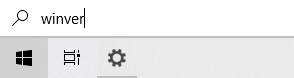
Click the Start button, type “winver” in the search box and press Enter.
Alternatively, you can press
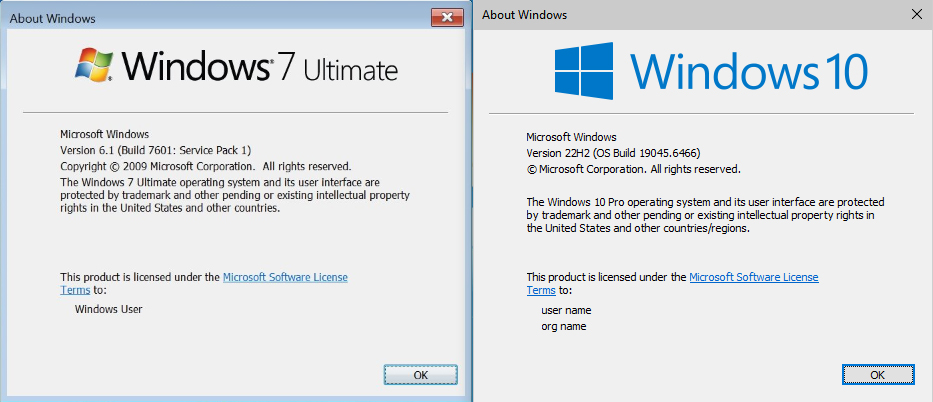
A screen will appear with detailed information about your Windows Operating System, including the version and the revision number.
Upgrade your Windows version
How to check for updates on your Windows computer:
Start by connecting to a power outlet if your computer runs on battery.
Click the Start button, type “update” in the search box and select Check for updates from the list of results.
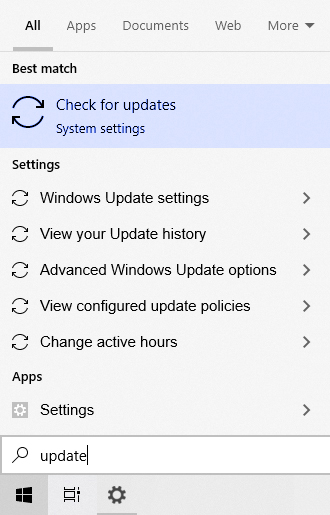
If you don’t see the Check for updates option, select
Wait while Windows looks for the latest updates for your computer. Once the update is complete, you can proceed to  install VirtualShield.
VirtualShield for macOS
We have two different apps available for Mac computers. Our secure, unlimited VPN app, and our safe, reliable Antivirus app. Both apps are supported on macOS X 10.14 (Mojave) and above. This includes macOS 11, 12, 13, 14, 15, and the new macOS 26 (Tahoe).
If you can download and install other apps on your computer, then it is likely you can install VirtualShield. However, there are a few devices that are too old to run our official desktop/mobile apps. This article will help you determine if your device is supported.
If your device is not supported we recommend checking for system updates. If your system is compatible you may be eligable to upgrade for free. We also advise checking for updates periodically to ensure that your device remains fully up-to-date.
If you are encountering issues installing apps outside of the Apple App Store, see our support article.
Check your macOS version
How to determine which version of macOS you’re using:
From the Apple menu near the corner of your screen, select About This Mac.
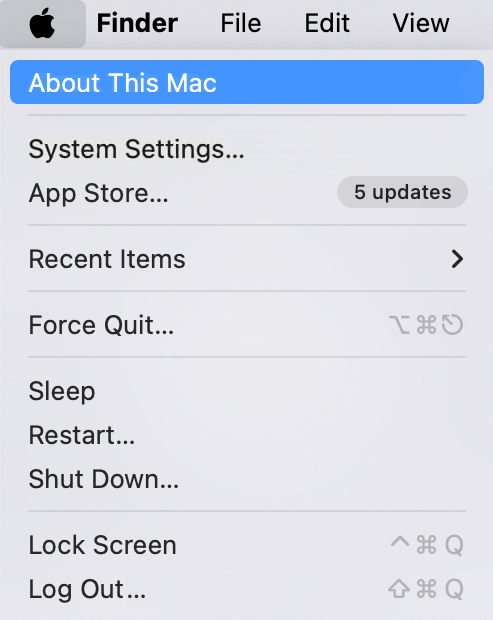
If you don’t see the About this Mac option, select System Information.
A screen will appear with detailed information about your macOS Operating System, including the version and the revision number.
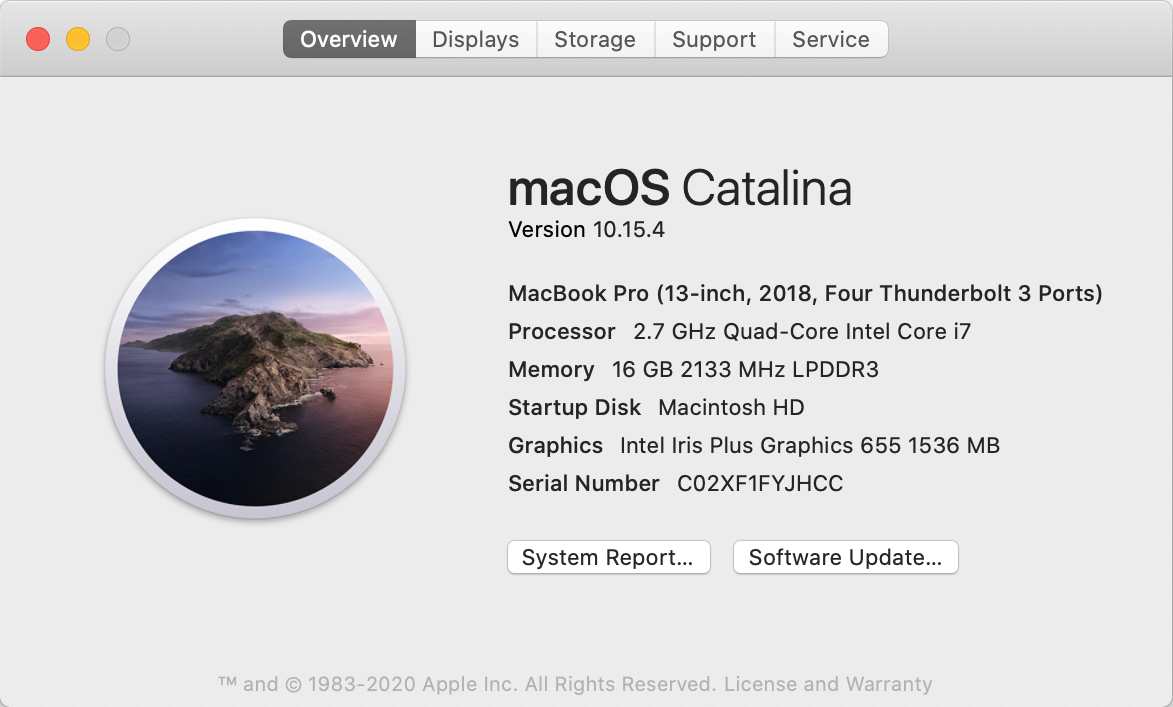
See this Apple article for more info on how to check your
Upgrade your macOS version
How to check for updates on your Mac computer:
Start by connecting to a power outlet if your computer runs on battery.
From the Apple menu near the corner of your screen, select System Settings.
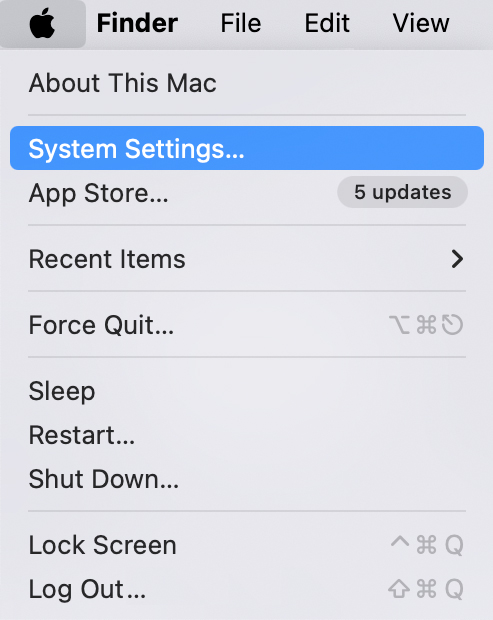
If you don’t see the System Settings option, select System Preferences.
Navigate to General from the sidebar, then click Software Update on the right.
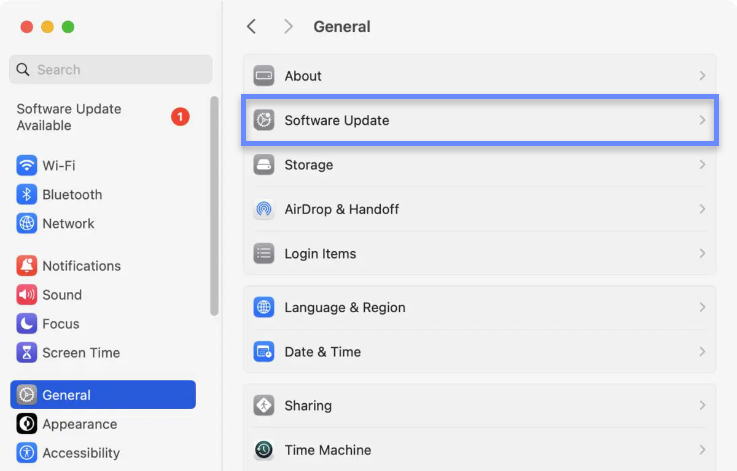
Wait while Apple looks for the latest updates for your computer. Once the update is complete, you can proceed to install VirtualShield.
In this section
VirtualShield for iOS
Our secure, unlimited VPN app is supported on Apple iOS 16.0 and above. This includes iOS 17, 18, and the new iOS 26. While Apple doesn’t natively support Antivirus on iOS, we’ve got you covered. Our VPN protects against harmful malware at the  network-level.
If you can install other apps from the Apple App Store, then it is likely you can install VirtualShield. However, there are a few devices that are too old to run our official desktop/mobile apps. This article will help you determine if your device is supported.
If your device is not supported we recommend checking for system updates. If your system is compatible you may be eligable to upgrade for free. We also advise checking for updates periodically to ensure that your device remains fully up-to-date.
It is not possible to install apps outside of the Apple App Store at this time. This was a design choice made by Apple.
Check your iOS version
How to determine which version of iOS you’re using:
Open the Settings app on your Apple iPhone/iPad.
If you can’t find this icon,
Navigate to General, and then tap About.
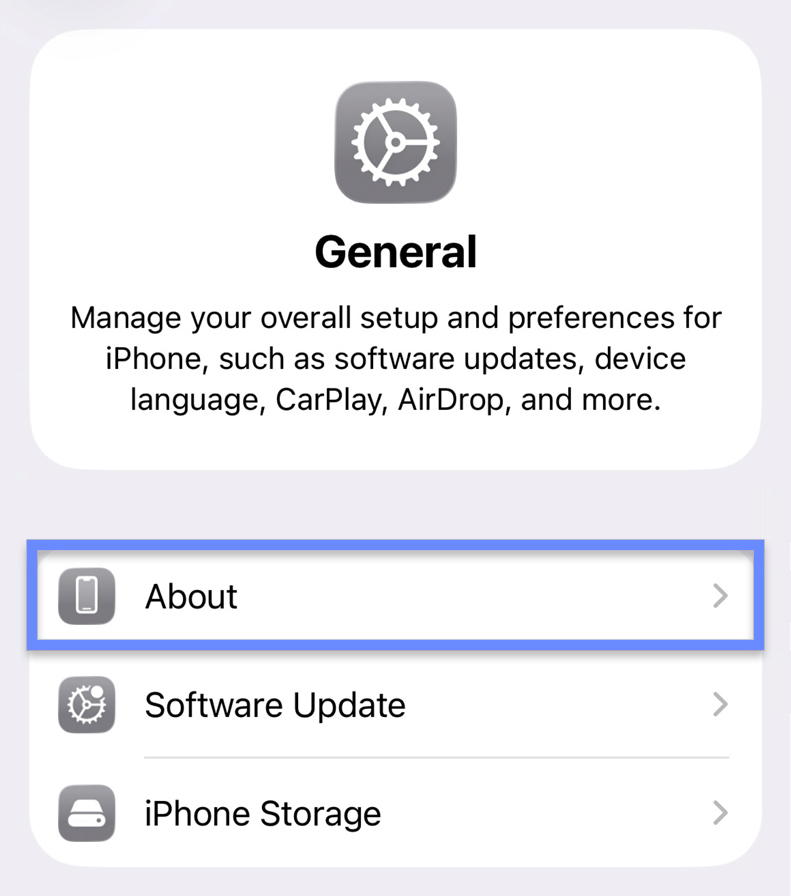
A screen will appear with detailed information about your iOS Operating System, including the version and the revision number.
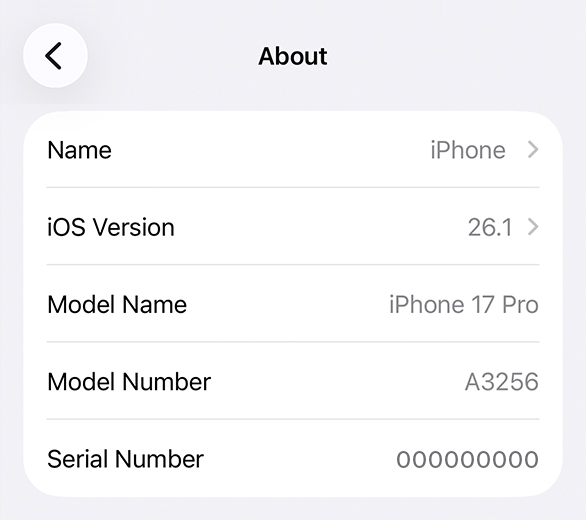
See this Apple article for more info on how to check your iOS version.
Upgrade your iOS version
How to check for updates on your iOS phone/tablet:
Start by connecting to a power outlet if your phone/tablet runs on battery.
Open the Settings app on your Apple iPhone/iPad.
Navigate to General, and then tap Software Update.
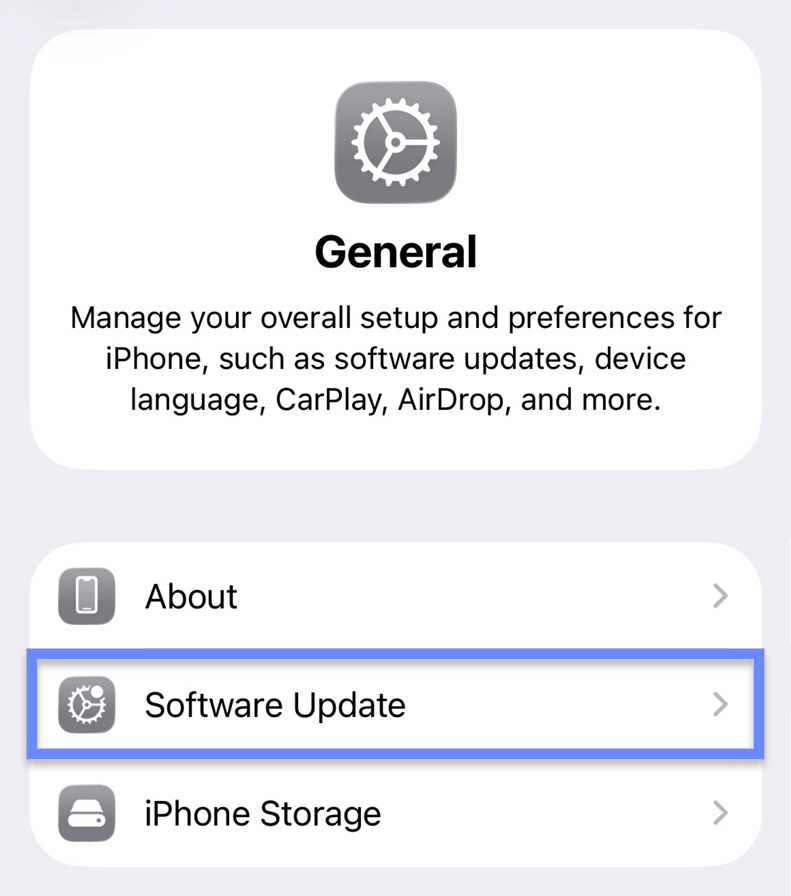
Wait while Apple looks for the latest updates for your phone/tablet. Once the update is complete, you can proceed to install VirtualShield.
See our support article for more info on how to install and uninstall the app on your Apple iPhone/iPad.
VirtualShield for Android
We have two different apps available for Android phones/tablets. Our secure, unlimited VPN app, and our safe, reliable Antivirus app. Both apps are supported on Google Android 7.0 and above. This includes Android 8, 9, 10, 11, 12, 13, 14, 15, 16, and the new Android 17.
If you can install other apps from the Google Play Store, then it is likely you can install VirtualShield. However, there are a few devices that are too old to run our official desktop/mobile apps. This article will help you determine if your device is supported.
If your device is not supported we recommend checking for system updates. If your system is compatible you may be eligable to upgrade for free. We also advise checking for updates periodically to ensure that your device remains fully up-to-date.
If your device lacks access to the Google Play Store or to install apps outside of the Store, see our support article.
Check your Android version
How to determine which version of Android you’re using:
Open the Settings app on your Android phone/tablet.
If you can’t find this icon, ask Google to open your Settings.
Navigate to About phone. You may need to scroll down.
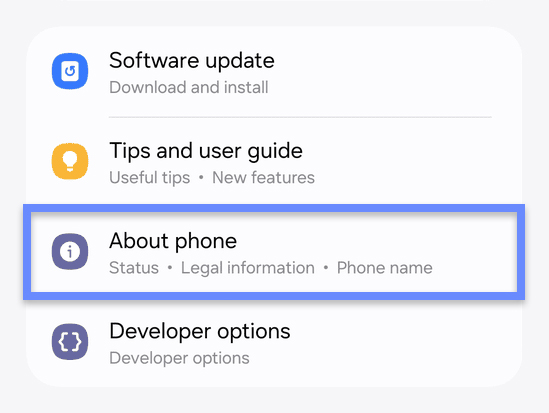
If you don’t see the About phone option, tap Software update.
A screen will appear with detailed information about your Android Operating System, including the version and the revision number.
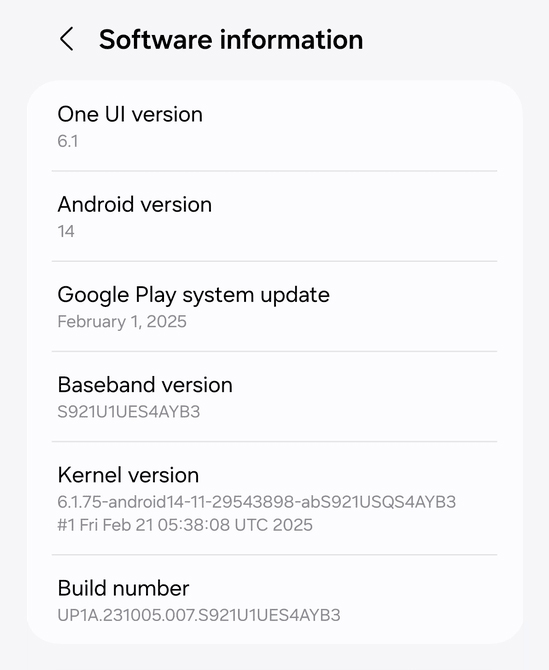
See this Google article for more info on how to check your Android version.
Upgrade your Android version
How to check for updates on your Android phone/tablet:
Start by connecting to a power outlet if your phone/tablet runs on battery.
Open the Settings app on your Android phone/tablet.
If you can’t find this icon, ask Google to open your Settings.
Navigate to Software update. You may need to scroll down.
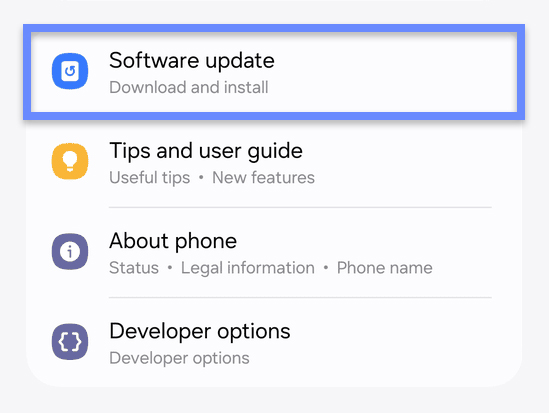
If you don’t see the Software update option, tap System update.
Wait while Google looks for the latest updates for your phone/tablet. Once the update is complete, you can proceed to install VirtualShield.
See our support article for more info on how to install and uninstall the app on your Android phone/tablet.
Common Questions
I can’t access the Google Play Store, what can I do?
If your device lacks access to the Google Play Store, it is likely that you can still use
My device is too old to run the app, what can I do?
If your device is incompatible, we strongly recommend upgrading your Operating System to remain protected against the latest threats.
Why can’t I install the app on my device?
Try following the steps in our Troubleshooting article to see if it solves the issue. If that doesn’t work, the problem is likely related to your