 Overview
There are a handful of things that can cause the secure handshake between your device and the VPN data center to suddenly fail or disconnect unexpectedly. This guide will help you diagnose the issue to determine the root cause, and help you activate protection again.

 Windows
  macOS iOS Android
Windows
Common causes include a  weak signal, abrupt network changes, invalid or missing VPN configuration, outdated server details, local internet restrictions, corrupted network settings, among several other things. Before you attempt to troubleshoot try connecting to a different Wi-Fi network, if one is available.
If you are still unable to establish a connection to our network, the fix might be as simple as adjusting a few of your VPN Settings or your System Settings. Follow each of the steps provided below, one at a time, and then try to connect again.
If you are stillunable to connect, the problem is likely related to your
In this section
Change your VPN Location
We have secure VPN servers available in 18+ countries, with over 5,000 rotating IPs. You can change your location anytime and your IP address will immediately reflect these changes when you surf the web.
If you are having trouble accessing certain apps or websites or maintaining a solid VPN connection, changing your location is the  very first thing we recommend. In most situations that will do the trick.
How to change your virtual (VPN) location:
Open VirtualShield VPN and log in to your account, if you are not logged in already.
For more help logging in and activating protection, see our support article.
Your current location will be displayed on the VPN screen, it might say  Fastest if you’re not connected. Press this button to choose a new location.


By default, we will automatically select the
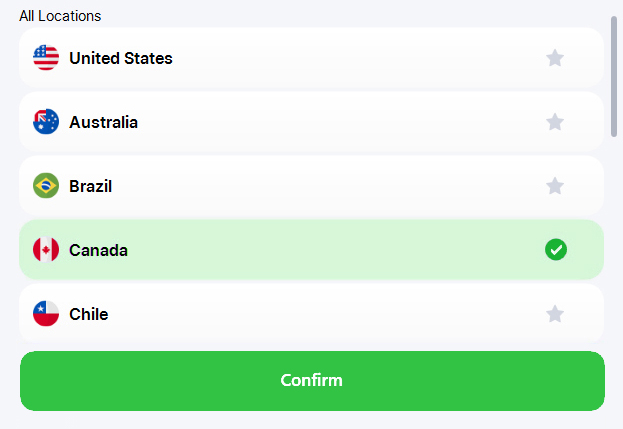
The list of Virtual regions will appear. Select your desired country or region to connect to, then choose Confirm.
See our support article for more info on how to connect to a specific location on all of your various devices.
Regenerate your VPN Key
Your VPN Key is used in the  encryption process, and it is automatically rotated and regenerated every 7-10 days for security purposes.
If you are unable to connect for any reason, your key is likely out-of-date. Generating a fresh VPN Key will ensure the handshake is completed successfully.
How to generate a new VPN Key:
Open VirtualShield VPN and log in to your account, if you are not logged in already.
For more help logging in and activating protection, see our support article.
Select VPN from the sidebar, or click  Secure VPN on the
  Home/Overview screen.
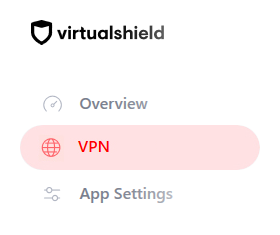
Click the Settings button near the top-right to open the  VPN Settings panel.

Alternatively, you can right-click the

Select Regenerate Keys to expand the list of options.

Click the Regenerate button to generate your new VPN Key.

See our support article for more info on how to generate a new VPN Key on your
Change your Default Port
Some  firewalls can be very sensitive, and block access to outgoing connections on a specific port or protocol. It means your security system is working as intended, and your network will remain secure.
Changing your Default Port can help increase reliability, or unblock the connection if a certain port and protocol combination is being blocked by your Internet Provider or your security system.
How to change your Default Port:
Open VirtualShield VPN and log in to your account, if you are not logged in already.
For more help logging in and activating protection, see our support article.
Select VPN from the sidebar, or click Secure VPN on the Home/Overview screen.
Click the Settings button near the top-right to open the VPN Settings panel.
Alternatively, you can right-click the
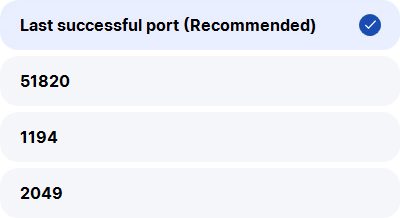
Select Default Port to expand the list of options.

Choose your desired option, then click the back arrow to return to the VPN screen.
See our support article for more info on how to change the Default Port on your
 Allow Local Network Access
Also known as Split Tunneling, this option allows you to communicate with other wireless devices while the VPN is active. This includes printers,  scanners, webcams,
  network drives, and more.
Sometimes this option is required while using certain networks. It is strongly recommended while using satellite-based networks like  Starlink,
  Globalstar, or
  Viasat. Other times it can help to turn it off.
How to enable/disable Local Network Access:
Open VirtualShield VPN and log in to your account, if you are not logged in already.
For more help logging in and activating protection, see our support article.
Select VPN from the sidebar, or click Secure VPN on the Home/Overview screen.
Click the Settings button near the top-right to open the VPN Settings panel.
Alternatively, you can right-click the
Toggle the Local Network Access option on or off, then click the back arrow to return to the VPN screen.

Reset your Network Settings
If you are unable to access the internet or establish a VPN connection, there might be a problem with your  network settings. Sometimes these settings can
  become corrupted and interfere with other apps.
Luckily, you can perform a network reset anytime. This won’t delete your apps, photos, or other sensitive data. However, it can erase your saved Wi-Fi passwords and other connection details.
How to reset your Network Settings:
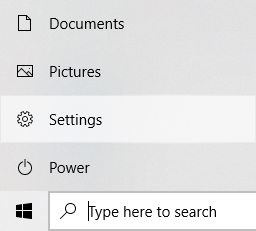
Open the Settings app on your Windows computer.

To open Settings, press
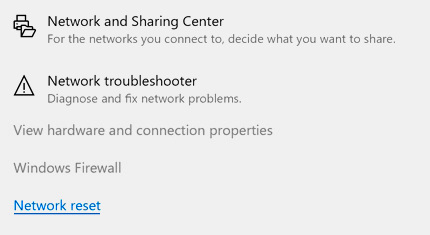
Navigate to Network & Internet, then scroll down and click the Network Reset link.
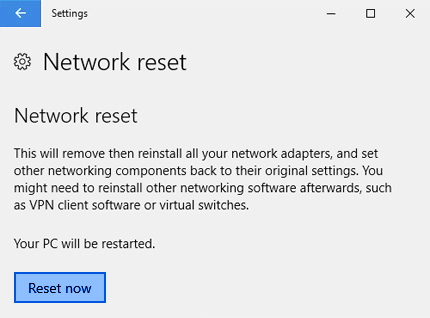
Click the Reset now button, then choose Yes to confirm your changes.
Check your Wi-Fi Network
On wireless devices there are a handful of things that may interrupt or weaken your signal strength, and impact the VPN connection. If you have a Wi-Fi connection, make sure you are within range of your router. If you have a Cellular/LTE connection, make sure you have not exceeded your data limit.
Your network could also be running behind a NAT/firewall that is blocking VPN connections. In that case you may need to connect to a different network first. This mostly applies to public Wi-Fi networks at places like restaurants, coffee shops, and airports.
How to check your Wi-Fi Network:
The first thing we recommend is turning off Airplane mode.
If Airplane mode is enabled it can interrupt your Wi-Fi signal, and the VPN connection.
Try connecting to a different Wi-Fi network, if one is available.
This will help you determine whether your Internet Provider is blocking the VPN, or if it is something else.
Next, try to restart your router and/or your device. Power off your router, and wait 30 seconds before powering it back on.
If any firmware updates are available for your router, they will be installed automatically.
Lastly, try to run the Wireless Diagnostics Troubleshooter. If any network issues are detected, Windows will repair them automatically.
See our support article for more info on how to diagnose your Wi-Fi Network.
 Reinstall the Application
It is likely you have an  old/legacy version of our app installed. The fix might be as simple as
  uninstalling and then reinstalling the newest version of the app from your Account Dashboard.
Our mobile apps can be downloaded directly from the Apple App Store or the Google Play Store, and the desktop apps can be downloaded from our website using the steps provided below.
How to reinstall the Windows application:
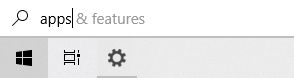
Click the Start button, type “apps” in the search box and press Enter.
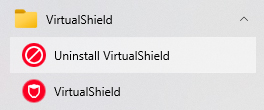
Find the VirtualShield VPN app in this list, then choose Uninstall.
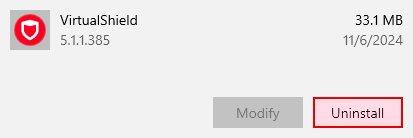
If you can’t find this option, open your Settings app and then uninstallApps category.
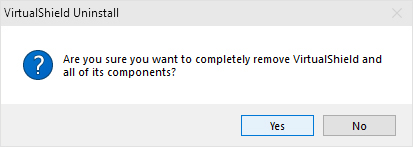
If you are prompted to confirm the uninstall, choose Yes to continue.
Visit our Windows Download Page and click the Download button. Alternatively, you can use this link and the file will begin to download automatically:
macOS
Common causes include a weak signal or if your network changes, invalid or missing VPN configuration, corrupted network settings, among other things. You must have a solid internet connection to remain protected by our network. Follow each of the steps provided below, one at a time, and then try to connect again.
If you are still
In this section
Change your VPN Location
We have VPN servers available in 18+ countries, with over 5,000 rotating IPs. You can change your location anytime, and your IP address will  immediately reflect these changes when you
  surf the web.
If you are having trouble accessing certain  apps or websites or maintaining a solid VPN connection, changing your location is the very first thing we recommend. In most cases that will do the trick.
How to change your virtual (VPN) location:
Open VirtualShield VPN and log in to your account, if you are not logged in already.
For more help logging in and activating protection, see our support article.
Your current location will be displayed on the Home/Overview screen, it might say Fastest if you’re not connected. Press this button to choose a new location.
The list of Virtual regions will appear. Select the  country or
  region you would like to connect to, then choose Confirm.
See our support article for more info on how to connect to a specific location on all of your various devices.
Regenerate your VPN Key
Your VPN Key is used in the encryption process, and it is automatically rotated and regenerated every 7-10 days for security purposes.
If you are unable to connect for any reason, your key is likely out-of-date. Generating a fresh VPN Key will ensure the handshake is completed successfully.
How to generate a new VPN Key:
Open VirtualShield VPN and log in to your account, if you are not logged in already.
For more help logging in and activating protection, see our support article.
In the Secure VPN section, click the  slider icon to open the VPN Settings panel.


Select the Advanced Settings tab to customize your  Advanced VPN Settings.

Select Regenerate Key to expand the list of options.

Click the Regenerate button to generate your new VPN Key.
See our support article for more info on how to generate a new VPN Key on your
Change your Default Port
Some firewalls can be very sensitive, and block access to outgoing connections on a specific port or protocol. It means your security system is working as intended, and your network will remain secure.
Changing your Default Port can help increase reliability, or unblock the connection if a certain port and protocol combination is being blocked by your Internet Provider or your security system.
How to change your Default Port:
Open VirtualShield VPN and log in to your account, if you are not logged in already.
For more help logging in and activating protection, see our support article.
In the Secure VPN section, click the slider icon to open the VPN Settings panel.
Select the Advanced Settings tab to customize your Advanced VPN Settings.
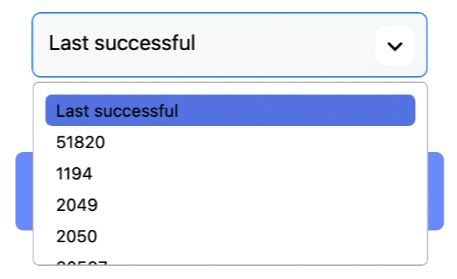
Select Default Port to expand the list of options.

Choose your desired option, then click the Save button to confirm your changes.
See our support article for more info on how to change the Default Port on your
Allow Local Network Access
Also known as Split Tunneling, this option allows you to communicate with other wireless devices while the VPN is active. This includes printers, scanners, webcams, network drives, and more.
Sometimes this option is required while using certain networks. It is strongly recommended while using satellite-based networks like Starlink, Globalstar, or Viasat. Other times it can help to turn it off.
How to enable/disable Local Network Access:
Open VirtualShield VPN and log in to your account, if you are not logged in already.
For more help logging in and activating protection, see our support article.
In the Secure VPN section, click the slider icon to open the VPN Settings panel.
Toggle the Local Network Access option on or off, then click the close button to return to the Home/Overview screen.

Reset your Network Settings
If you are unable to access the internet or establish a VPN connection, there might be a problem with your network settings. Sometimes these settings can become corrupted and interfere with other apps.
Luckily, you can perform a network reset anytime. This won’t delete your apps, photos, or other sensitive data. However, it can erase your saved Wi-Fi passwords and other connection details.
How to reset your Network Settings:
From the Apple menu near the corner of your screen, select System Settings.
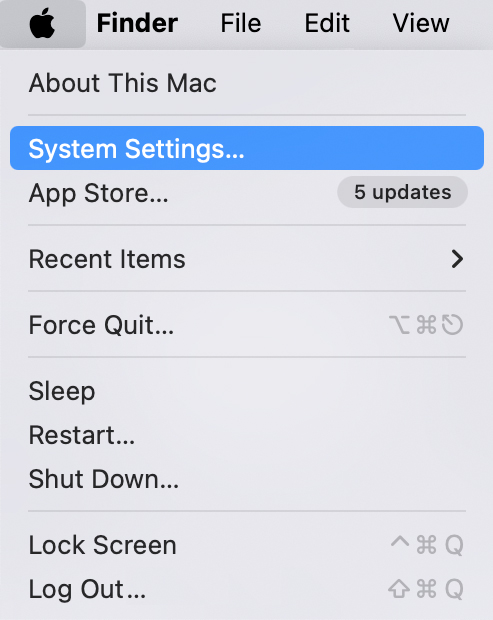
If you don’t see the System Settings option, select System Preferences.
Navigate to Network from the sidebar.
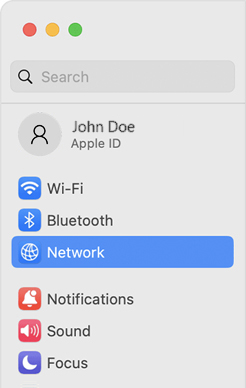
Select your connection (Ethernet or Wi-Fi), then remove it by clicking the minus icon.
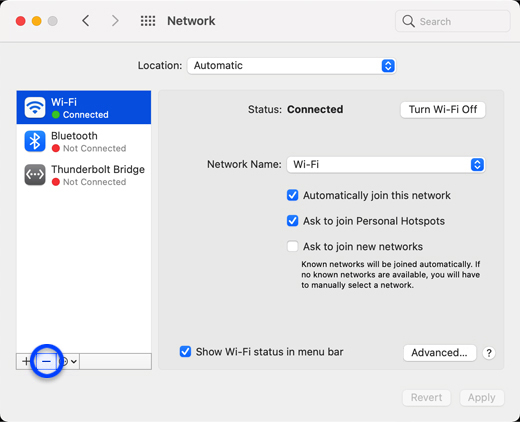
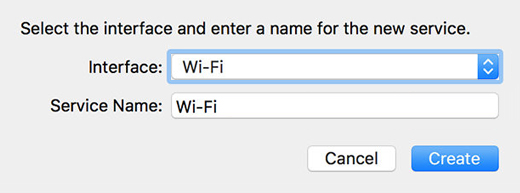
Add it again by clicking the plus icon, and selecting your network from the drop-down.
Check your Wi-Fi Network
Your network could be running behind a NAT/firewall that is blocking VPN connections. In that case you may need to connect to a different network first.
This mostly applies to public Wi-Fi networks at places like restaurants, coffee shops, and airports. Check with your network provider to see if VPNs are supported.
Click the Wireless Networks icon near the corner of your screen and turn on Wi-Fi, if it is not on already.
Your device will begin to automatically search for available Wi-Fi networks.
Once turned on, you can connect to any Wi-Fi network you prefer, so long as you have the password.
...
Reinstall the Application
It is likely you have an old/legacy version of our app installed. The fix might be as simple as uninstalling and then reinstalling the newest version of the app from your Account Dashboard.
Our mobile apps can be downloaded directly from the Apple App Store or the Google Play Store, and the desktop apps can be downloaded from our website using the steps provided below.
How to reinstall the macOS application:
Open Finder in the Dock, and select Applications from the sidebar.
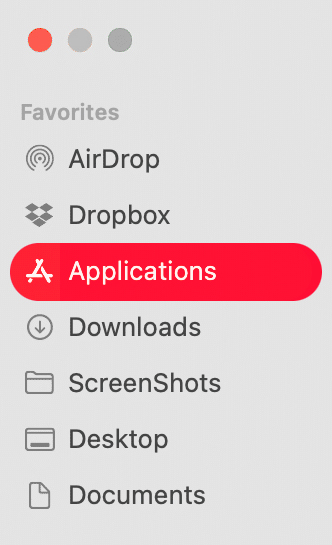
Alternatively, you can pressOption +
Command +
Space on your keyboard.
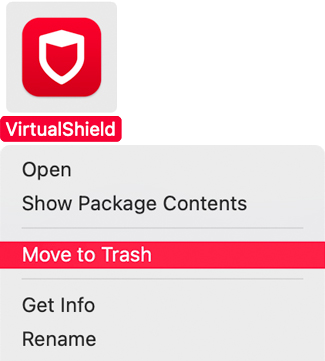
Find the VirtualShield VPN app in this list, then Control-click the icon and select Move to Trash from the popup menu.
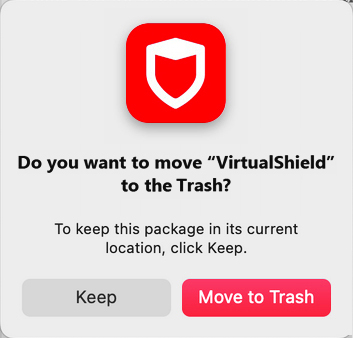
If you are prompted to confirm the uninstall, choose Move to Trash to continue.
If you are prompted for your credentials, enter your computer’s password.
Visit our macOS Download Page and click the Download button. Alternatively, you can use this link and the file will begin to download automatically:
iOS
Common causes include a weak signal or if your network changes, invalid or missing VPN configuration, corrupted network settings, among other things. You must have a solid internet connection to remain protected by our network. Follow each of the steps provided below, one at a time, and then try to connect again.
If you are still
In this section
Change your VPN Location
We have VPN servers available in 18+ countries, with over 5,000 rotating IPs. You can change your location anytime, and your IP address will immediately reflect these changes when you surf the web.
If you are having trouble accessing certain apps or websites or maintaining a solid VPN connection, changing your location is the very first thing we recommend. In most cases that will do the trick.
How to change your virtual (VPN) location:
Open VirtualShield VPN and log in to your account, if you are not logged in already.
For more help logging in and activating protection, see our support article.
Your current location will be displayed on the Home/Overview screen, it might say Fastest if you’re not connected. Press this button to choose a new location.
The list of Virtual regions will appear. Select the country or region you would like to connect to, then choose Confirm.
See our support article for more info on how to connect to a specific location on all of your various devices.
Regenerate your VPN Key
Your VPN Key is used in the encryption process, and it is automatically rotated and regenerated every 7-10 days for security purposes.
If you are unable to connect for any reason, your key is likely out-of-date. Generating a fresh VPN Key will ensure the handshake is completed successfully.
How to generate a new VPN Key:
Open VirtualShield VPN and log in to your account, if you are not logged in already.
For more help logging in and activating protection, see our support article.
Tap the slider icon near the top-right to open the VPN Settings panel.


Select Advanced Settings to customize your Advanced VPN Settings.

Select Regenerate Key to expand the list of options.
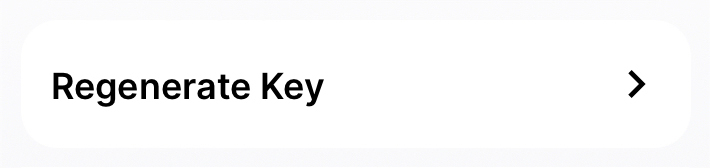
Tap the Regenerate button to generate your new VPN Key.
See our support article for more info on how to generate a new VPN Key on your Apple iPhone/iPad.
Change your Default Port
Some firewalls can be very sensitive, and block access to outgoing connections on a specific port or protocol. It means your security system is working as intended, and your network will remain secure.
Changing your Default Port can help increase reliability, or unblock the connection if a certain port and protocol combination is being blocked by your Internet Provider or your security system.
How to change your Default Port:
Open VirtualShield VPN and log in to your account, if you are not logged in already.
For more help logging in and activating protection, see our support article.
Tap the slider icon near the top-right to open the VPN Settings panel.
Select Advanced Settings to customize your Advanced VPN Settings.
Select Default Port to expand the list of options.
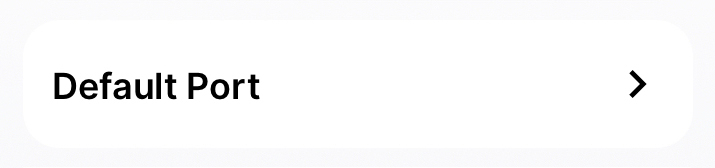
Choose your desired option, then tap the Save button to confirm your changes.
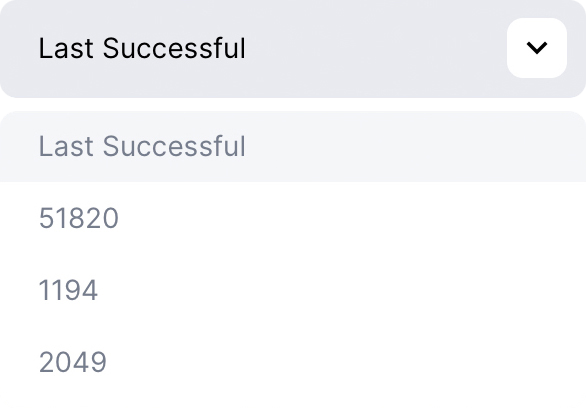
See our support article for more info on how to change the Default Port on your Apple iPhone/iPad.
Allow Local Network Access
Also known as Split Tunneling, this option allows you to communicate with other wireless devices while the VPN is active. This includes printers, scanners, webcams, network drives, and more.
Sometimes this option is required while using certain networks. It is strongly recommended while using satellite-based networks like Starlink, Globalstar, or Viasat. Other times it can help to turn it off.
How to enable/disable Local Network Access:
Open VirtualShield VPN and log in to your account, if you are not logged in already.
For more help logging in and activating protection, see our support article.
Tap the slider icon near the top-right to open the VPN Settings panel.
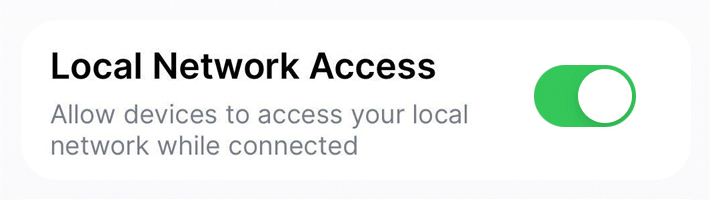
Toggle the Local Network Access option on or off, then tap the back arrow to return to the Home/Overview screen.
Reset your Network Settings
If you are unable to access the internet or establish a VPN connection, there might be a problem with your network settings. Sometimes these settings can become corrupted and interfere with other apps.
Luckily, you can perform a network reset anytime. This won’t delete your apps, photos, or other sensitive data. However, it can erase your saved Wi-Fi passwords and other connection details.
How to reset your Network Settings:
Open the Settings app on your Apple iPhone/iPad.

If you can’t find this icon,
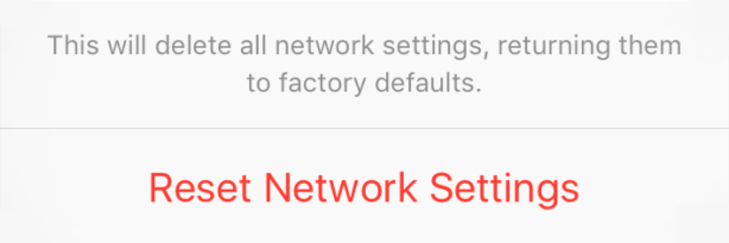
Navigate to General Reset, then tap Reset Network Settings.
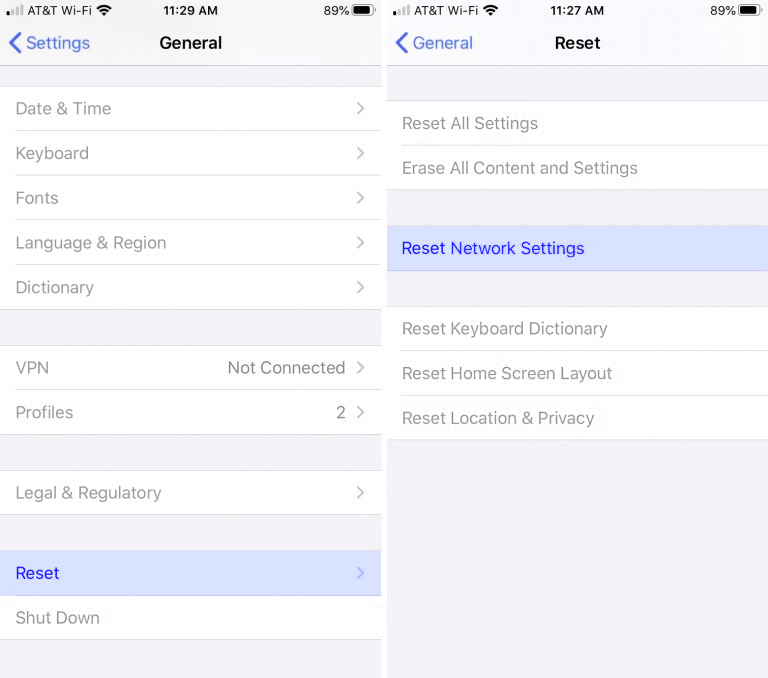
Tap Reset Network Settings near the bottom of this screen.
Check your Wi-Fi Network
Your network could be running behind a NAT/firewall that is blocking VPN connections. In that case you may need to connect to a different network first.
This mostly applies to public Wi-Fi networks at places like restaurants, coffee shops, and airports. Check with your network provider to see if VPNs are supported.
Open the Settings app on your device, then tap on Wi-Fi.
Flip the toggle switch to turn on Wi-Fi, if it is not on already.
Your device will begin to automatically search for available Wi-Fi networks.
Once turned on, you can connect to any Wi-Fi network you prefer, so long as you have the password.
...
Reinstall your VPN Profile
The VPN Profile must be installed to uniquely identify your device. It also helps recognize the VirtualShield VPN app apart from any other VPNs that are installed.
Occasionally Apple iOS updates or installing two different VPNs at once can remove this profile from your device. You can only use a single VPN profile at any given time.
How to reinstall your VPN Profile:
Open VirtualShield VPN and log in to your account, if you are not logged in already.
For more help logging in and activating protection, see our support article.
Tap the slider icon near the top-right to open the VPN Settings panel.
Select Advanced Settings to customize your Advanced VPN Settings.
Select Reinstall VPN Profile to expand the list of options.

Press the Reinstall profile button, then tap the back arrow to return to the Home/Overview screen.

Android
Common causes include a weak signal or if your network changes, invalid or missing VPN configuration, corrupted network settings, among other things. You must have a solid internet connection to remain protected by our network. Follow each of the steps provided below, one at a time, and then try to connect again.
If you are still
In this section
Change your VPN Location
We have VPN servers available in 18+ countries, with over 5,000 rotating IPs. You can change your location anytime, and your IP address will immediately reflect these changes when you surf the web.
If you are having trouble accessing certain apps or websites or maintaining a solid VPN connection, changing your location is the very first thing we recommend. In most cases that will do the trick.
How to change your virtual (VPN) location:
Open VirtualShield VPN and log in to your account, if you are not logged in already.
For more help logging in and activating protection, see our support article.
Your current location will be displayed on the Home/Overview screen, it might say Fastest if you’re not connected. Press this button to choose a new location.
The list of Virtual regions will appear. Select the country or region you would like to connect to, then choose Confirm.
See our support article for more info on how to connect to a specific location on all of your various devices.
Regenerate your VPN Key
Your VPN Key is used in the encryption process, and it is automatically rotated and regenerated every 7-10 days for security purposes.
If you are unable to connect for any reason, your key is likely out-of-date. Generating a fresh VPN Key will ensure the handshake is completed successfully.
How to generate a new VPN Key:
Open VirtualShield VPN and log in to your account, if you are not logged in already.
For more help logging in and activating protection, see our support article.
Tap the slider icon near the top-right to open the VPN Settings panel.
Overview icon near the bottom to return to the Home/Overview screen.
Select Advanced Settings to customize your Advanced VPN Settings.
Select Regenerate Key to expand the list of options.
Tap the Regenerate button to generate your new VPN Key.
See our support article for more info on how to generate a new VPN Key on your Android phone/tablet.
Change your Default Port
Some firewalls can be very sensitive, and block access to outgoing connections on a specific port or protocol. It means your security system is working as intended, and your network will remain secure.
Changing your Default Port can help increase reliability, or unblock the connection if a certain port and protocol combination is being blocked by your Internet Provider or your security system.
How to change your Default Port:
Open VirtualShield VPN and log in to your account, if you are not logged in already.
For more help logging in and activating protection, see our support article.
Tap the slider icon near the top-right to open the VPN Settings panel.
Select Advanced Settings to customize your Advanced VPN Settings.
Select Default Port to expand the list of options.
Choose your desired option, then tap the Save button to confirm your changes.
See our support article for more info on how to change the Default Port on your Android phone/tablet.
Allow Local Network Access
Also known as Split Tunneling, this option allows you to communicate with other wireless devices while the VPN is active. This includes printers, scanners, webcams, network drives, and more.
Sometimes this option is required while using certain networks. It is strongly recommended while using satellite-based networks like Starlink, Globalstar, or Viasat. Other times it can help to turn it off.
How to enable/disable Local Network Access:
Open VirtualShield VPN and log in to your account, if you are not logged in already.
For more help logging in and activating protection, see our support article.
Tap the slider icon near the top-right to open the VPN Settings panel.
Toggle the Local Network Access option on or off, then tap the back arrow to return to the Home/Overview screen.
Reset your Network Settings
If you are unable to access the internet or establish a VPN connection, there might be a problem with your network settings. Sometimes these settings can become corrupted and interfere with other apps.
Luckily, you can perform a network reset anytime. This won’t delete your apps, photos, or other sensitive data. However, it can erase your saved Wi-Fi passwords and other connection details.
How to reset your Network Settings:
Open the Settings app on your Android phone/tablet.

If you can’t find this icon, ask Google to open your Settings.
Select General management to expand the list of options.
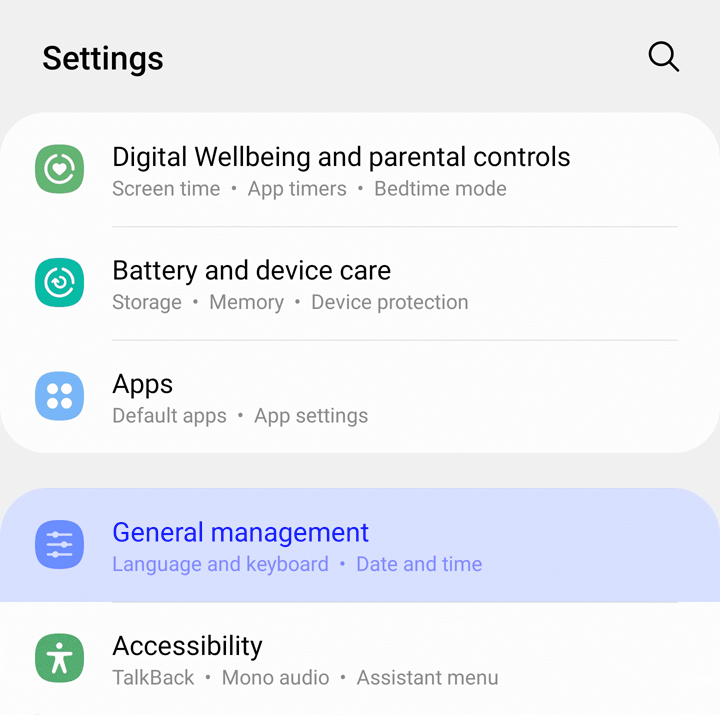
It may be labeled General or System, depending on the make and model of your device.
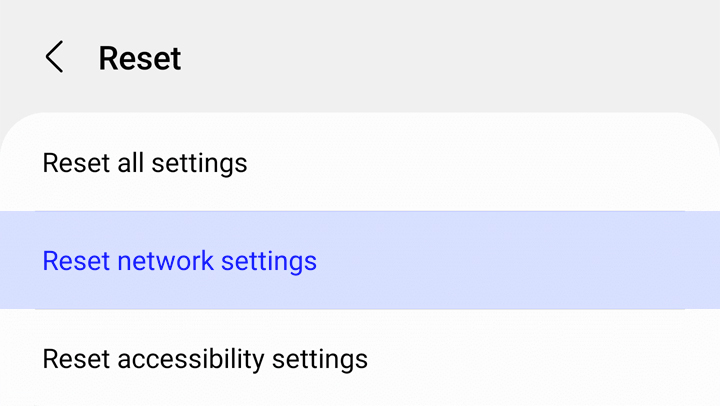
Navigate to Reset Reset Network Settings.
Check your Wi-Fi Network
Your network could be running behind a NAT/firewall that is blocking VPN connections. In that case you may need to connect to a different network first.
This mostly applies to public Wi-Fi networks at places like restaurants, coffee shops, and airports. Check with your network provider to see if VPNs are supported.
Open the Settings app on your device, then tap on Network & Internet.
Flip the toggle switch to turn on Wi-Fi, if it is not on already.
Your device will begin to automatically search for available Wi-Fi networks.
Once turned on, you can connect to any Wi-Fi network you prefer, so long as you have the password.
...
Reinstall your VPN Profile
The VPN Profile must be installed to uniquely identify your device. It also helps recognize the VirtualShield VPN app apart from any other VPNs that are installed.
Occasionally Android updates or installing two different VPNs at once can remove this profile from your device. You can only use a single VPN profile at any given time.
How to reinstall your VPN Profile:
Open VirtualShield VPN and log in to your account, if you are not logged in already.
For more help logging in and activating protection, see our support article.
Tap the slider icon near the top-right to open the VPN Settings panel.
Select Advanced Settings to customize your Advanced VPN Settings.
Select Reinstall VPN Profile to expand the list of options.
Press the Reinstall profile button, then tap the back arrow to return to the Home/Overview screen.
Common Questions
Can I use two VPNs at the same time?
It depends, some devices only allow one VPN to be operational at any given time. We recommend removing/uninstalling any other VPNs from your device first, before you attempt to log in and connect to our network.
I still can’t connect to the VPN, what should I do?
Sometimes system upgrades can cause files to become corrupt or missing. If all else fails after trying the troubleshooting steps above, try uninstalling and reinstalling the application from our website. See our support article for more information.