 Overview
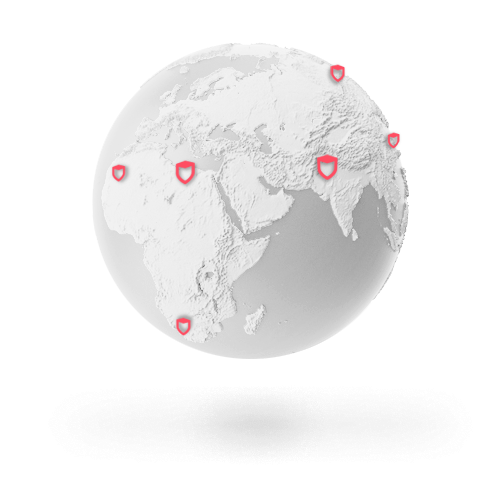
We have secure VPN servers available in 18+ countries, with over 5,000 rotating IPs. You can change your location anytime and your IP address will immediately reflect these changes when you surf the web.
Websites, apps, and other third-parties will only be able to detect the virtual location (IP address) of the secure data center you’re connected to, they will not be able to recognize your actual location.
In this article
How does it work?
The entire purpose of a VPN is to remain anonymous on the internet. Typically when you surf the web, your public IP address can be seen by third-parties. This includes your Internet/Cellular provider (ISP), every website or server you visit, your online apps and games, and your email provider. Just to name a few.
If someone knows your IP address they will be able to detect your geographic location, intercept and download your data, and gain remote access to your device and your personal information. Tech-savvy criminals can even use these details to impersonate you and convince someone else that they are you.
A VPN allows you to hide your IP address, thus hiding your location so you can appear to be located from anywhere in the world. The VirtualShield VPN app will also encrypt your entire connection, protect against ads and malware, and completely erase your digital footprint for additional security.
If
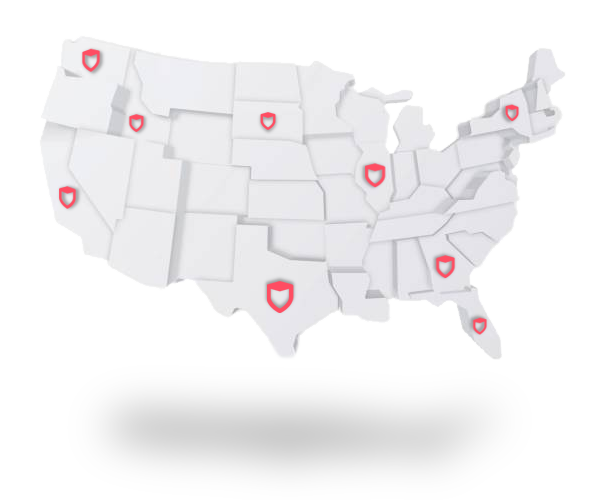
State Selection is enabled you will be able to fine-tune your location and choose a specific state/province to connect to, in addition to the country.
Why is it important?
Changing your location offers a number of advantages. It lets you access your favorite digital content from anywhere in the world, which may be inaccessible from your location. Or if you travel frequently, simply choose a different location to access your movies, music, podcasts, online stores, and more.
It can also help increase reliability and achieve faster connection speed(s). If you are having trouble accessing certain apps or websites or maintaining a solid VPN connection, changing your location is the very first thing we recommend. In most situations that will do the trick.
All of our U.S. servers come equipped with
Unrestricted Streaming. This unique service allows you to stream on apps and websites like Netflix, Hulu, Amazon Prime, Apple TV, Disney Plus, YouTube TV, and many more.
Changing your Location
We wanted VirtualShield to be easy for everyone, no matter what device you are using. To achieve this, our team worked tirelessly to ensure a that our user experience is the same across all platforms.
As a result, many of the functions work the same exact way on all of your devices. It doesn’t matter which device you’re using, this article applies to  Windows,
  macOS, iOS, Android, and more.
How to change your virtual (VPN) location:
Open VirtualShield VPN and log in to your account, if you are not logged in already.
For more help logging in and activating protection, see our support article.
Your current location will be displayed on the  Overview screen, it might say
  Fastest if you’re not connected. Press this button to choose a new location.


By default, we will automatically select the
The list of Virtual regions will appear. Select your desired country or region to connect to, then choose Confirm.
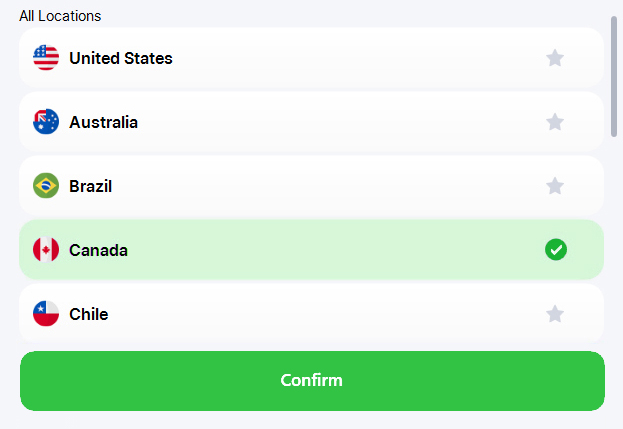
You will see a green check next to your selection. You can also save locations to your Favorites by pressing the star icon.
 That’s it! You will be automatically connected to the new location. You can surf the web with full privacy while being protected by our state of the art network.

You can Test your Protection by visiting this link. If you are connected to ourVPN network, this page will report your status as Protected. See our support article for more information.
Common Questions
My country/region is not available, what can I do?
If you don’t see your country or region listed, don’t worry. All of our VPN servers are
Why can’t I see the Confirm button on my device?
On Windows computers, right-click the Desktop and navigate to Display Settings Scale and layout. Change the size of text, apps, and other items to 100%. On phones and tablets, try pinching with two fingers to zoom out.
Will you be adding more locations in the future?
Absolutely! We’re constantly deploying new data centers, as well as rebooting and maintaining our existing servers to ensure our network is always performing optimally. If you have any questions, don’t hesitate to contact us.