 Overview
You can view a detailed history of all past virus scans that have been performed on your various devices. All of your previous  Quick, Deep, and Custom Scans will be displayed on this screen.
You can also select a specific scan result to view more details, and manage exactly how long you would like to keep history files on your device before they are automatically deleted.

 Windows
  macOS Android
Windows
Every time a Scheduled Scan or a Manual scan is performed, a personal log file will be created containing more detailed information about the results of the scan.
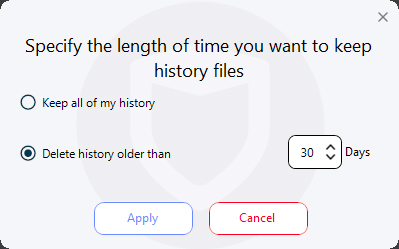
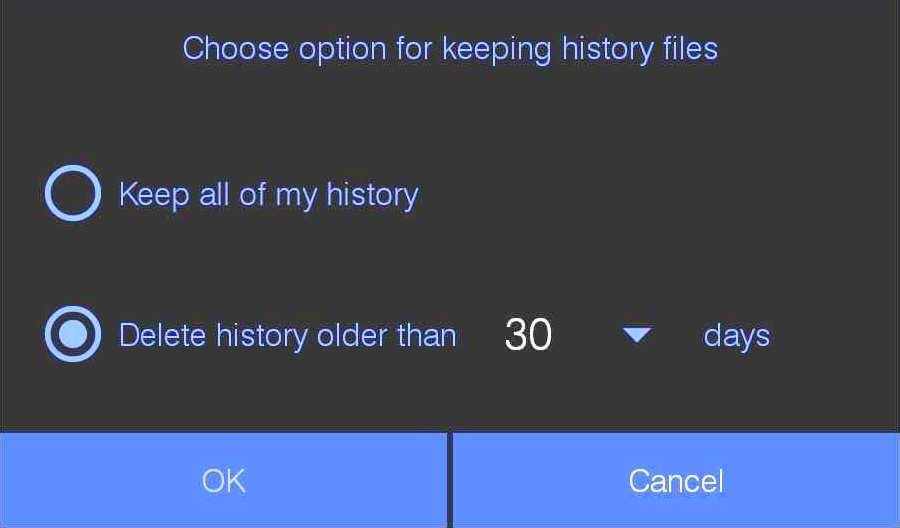
By default, history files will be automatically deleted after 30 days. You can keep these files on your device forever, or specify the length of time before they are deleted.
If any infected files or suspicious risks are detected by our system, they will be immediately placed into Quarantine. They will also be listed here.
Scan History
How to view previous Scan History on your Windows computer:
Open VirtualShield Antivirus and log in to your account, if you are not logged in already.
For more help logging in and activating protection, see our support article.
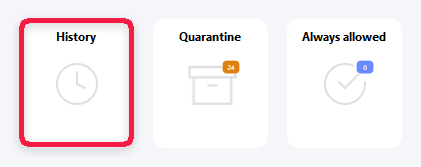
Click the History icon on the  Home/Status screen.

Your Scheduled Scans and Manual Scans will be listed here, along with the scan type and the date/time. Select a specific scan result to view more details.
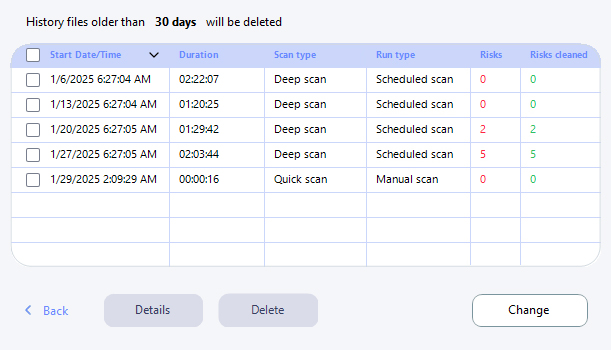
You can also specify the length of time to keep history files on your device by clicking the Change button.
macOS
Every time a Scheduled Scan or a Manual scan is performed, a personal log file will be created containing more detailed information about the results of the scan.
By default, history files will be automatically deleted after 30 days. You can keep these files on your device forever, or specify the length of time before they are deleted.
If any infected files or suspicious risks are detected by our system, they will be immediately placed into Quarantine. They will also be listed here.
Scan History
How to view previous Scan History on your Mac computer:
Open VirtualShield Antivirus and log in to your account, if you are not logged in already.
For more help logging in and activating protection, see our support article.
Click the  display icon on the sidebar to customize your
  Advanced Settings.

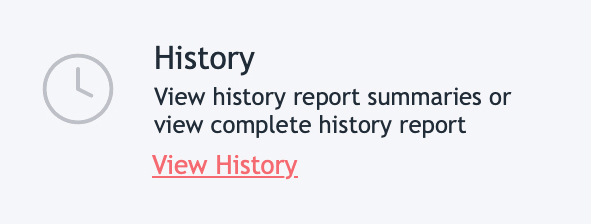
Below History on the right, click the View link.
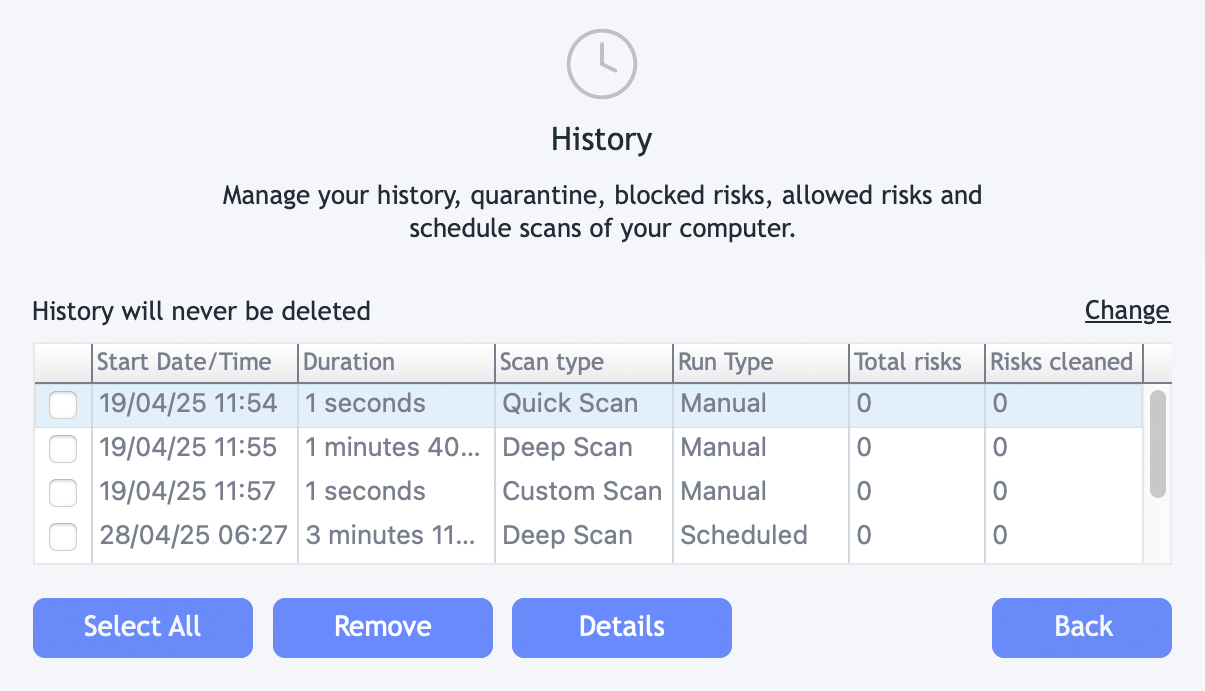
Your Scheduled Scans and Manual Scans will be listed here, along with the scan type and the date/time. Select a specific scan result to view more details.
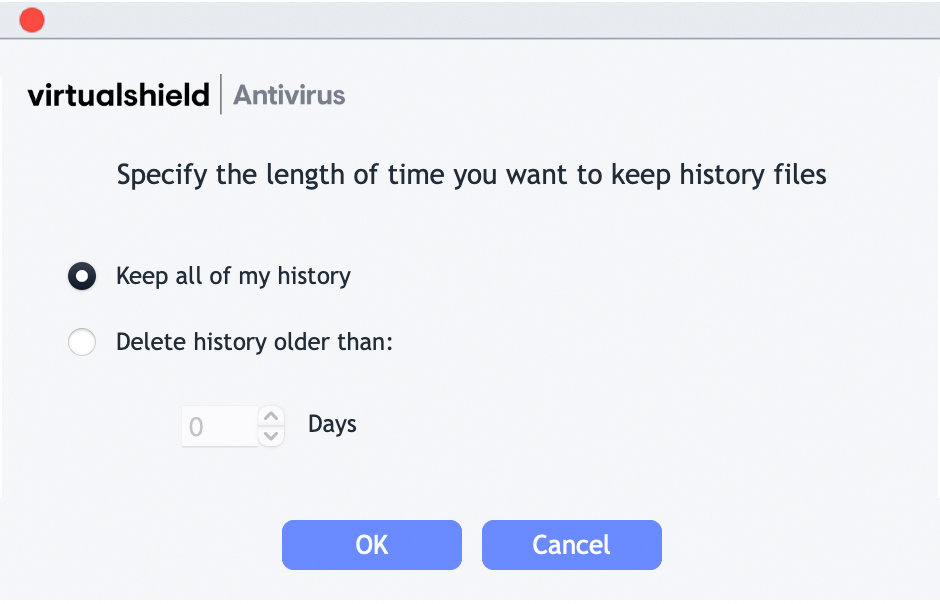
You can also specify the length of time to keep history files on your device by tapping the Change link.
Android
Every time a Scheduled Scan or a Manual scan is performed, a personal log file will be created containing more detailed information about the results of the scan.
By default, history files will be automatically deleted after 30 days. You can keep these files on your device forever, or specify the length of time before they are deleted.
If any infected files or suspicious risks are detected by our system, you will be given the option to Allow it or delete it forever. They will also be listed here.
Scan History
How to view previous Scan History on your Android phone/tablet:
Open VirtualShield Antivirus and log in to your account, if you are not logged in already.
For more help logging in and activating protection, see our support article.
Tap the Menu icon near the top-left, then select History.

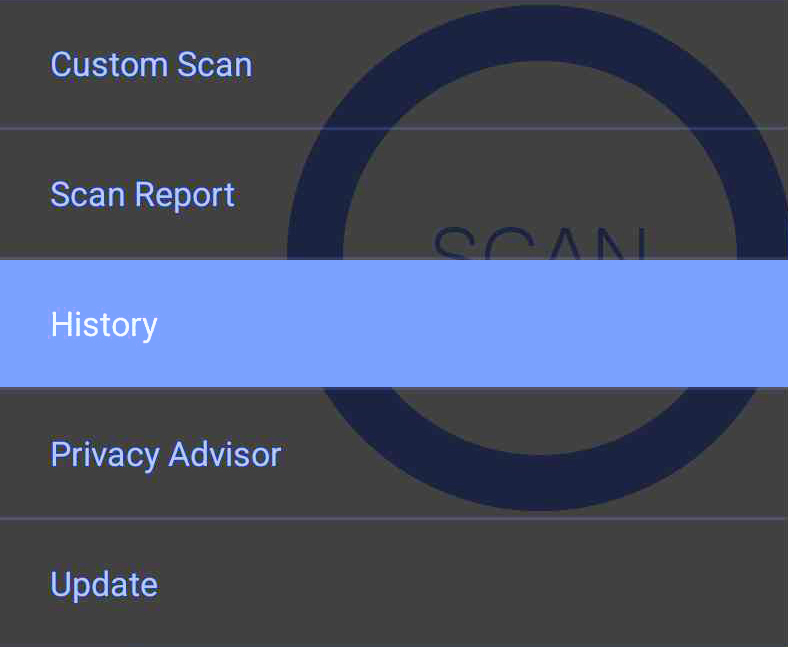
Your Scheduled Scans and Manual Scans will be listed here, along with the scan type and the date/time. Select a specific scan result to view more details.
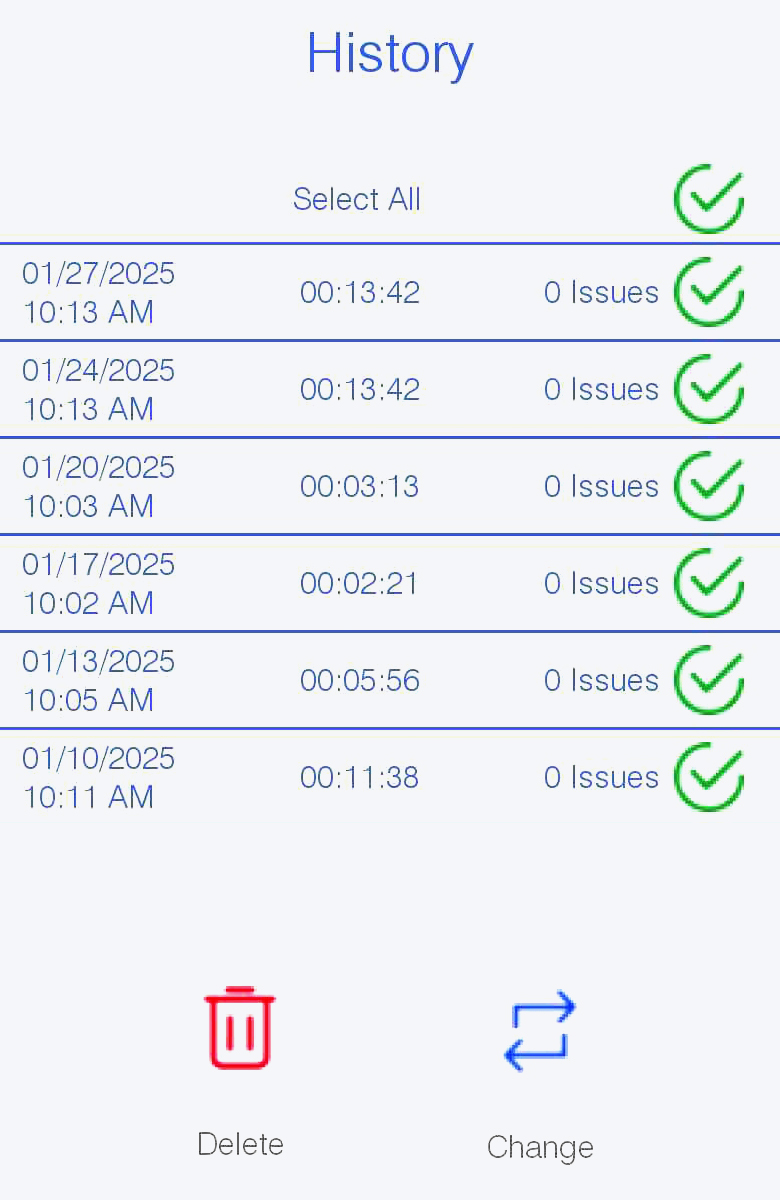
You can also specify the length of time to keep history files on your device by tapping the Change button.
Common Questions
Can I delete my history files safely?
Yes, you can! Deleting history files will not have any negative impact on your device. If any infected files or suspicious risks are found during a scan, they will remain in your Quarantine until you restore or delete the file(s) manually.
Can I restore history that has been deleted?
No, history files will be deleted permanently. They can not be restored. We recommend keeping these files on your device forever, or you might lose track.